Dates, holidays, and events
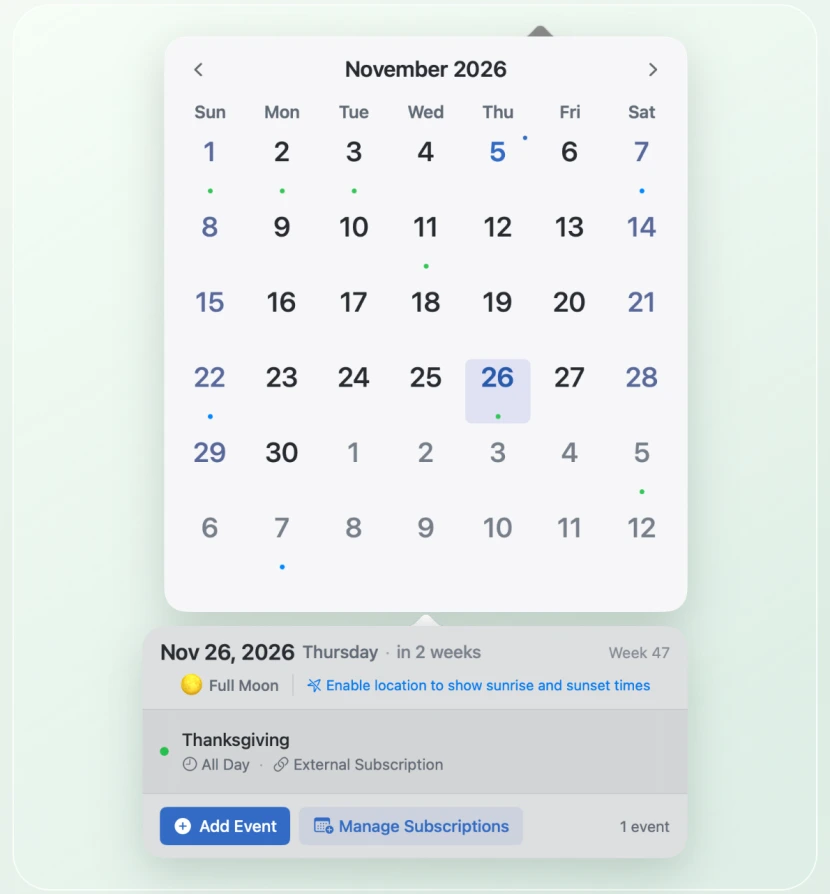
See the Gregorian calendar with a familiar calendar system, such as Chinese Lunar or Hebrew. View Mac calendar events with permission, subscribe to holiday calendars, or keep events on your Mac.
 MioCal
Menu bar calendar for Mac
Click the date in your Mac menu bar to open a beautifully simple calendar. Check your day, browse months, and make it feel at home on your desktop.
Requires macOS 13 or later
Features
See the Gregorian calendar with a familiar calendar system, such as Chinese Lunar or Hebrew. View Mac calendar events with permission, subscribe to holiday calendars, or keep events on your Mac.
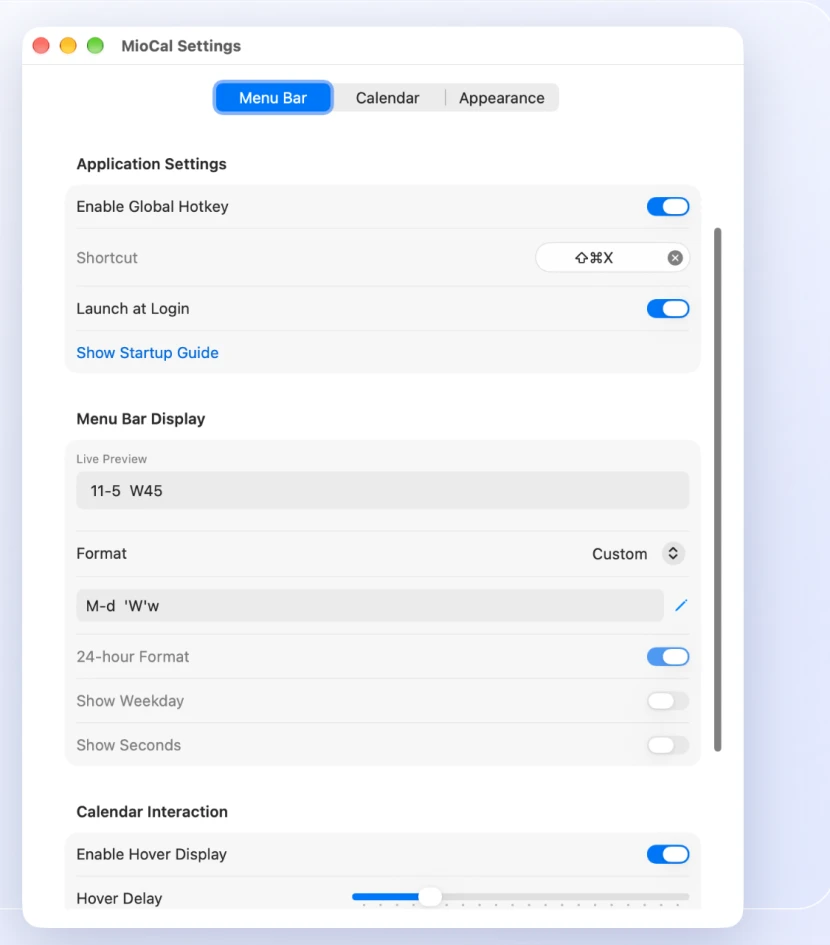
Choose the date format in your menu bar. Set a keyboard shortcut, open on hover, or change the first day of the week and calendar size.
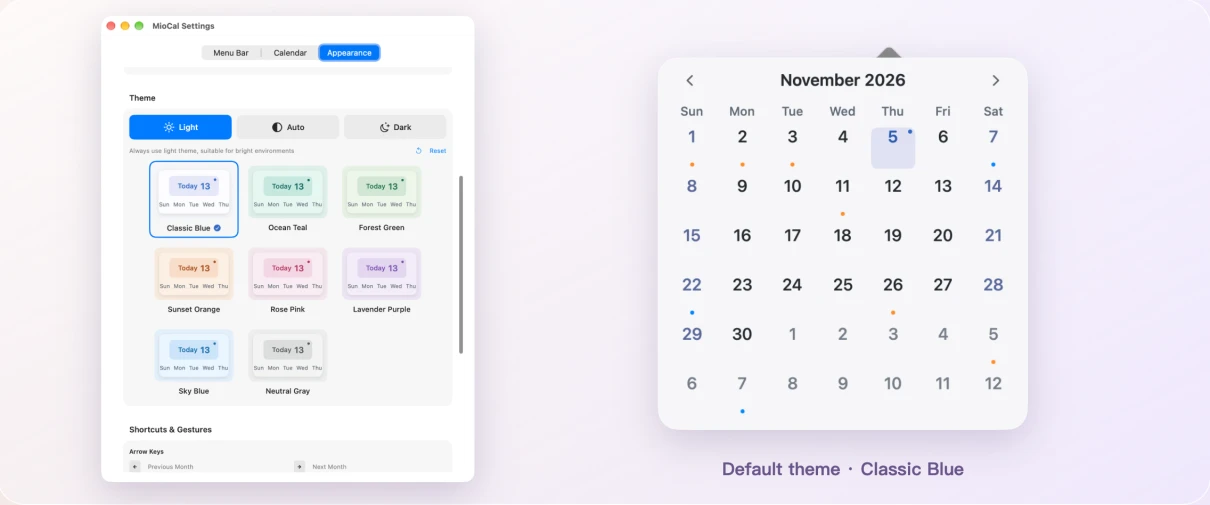
Pick from light and dark palettes, or have MioCal follow your Mac’s appearance. A little color makes a familiar calendar feel like yours.
Launch MioCal and click the date in the macOS menu bar. You can also set a global keyboard shortcut or turn on opening the calendar on hover.
Yes. Choose Chinese Lunar as your secondary calendar to see lunar dates and traditional festivals. Subscribe to a holiday calendar for the region you want to follow.
MioCal works without an account. Grant calendar access when you want to see Mac calendar events, or location access when you want local sunrise and sunset times.
Requires macOS 13 or later